 Tests and debugging
The IDE runs the project's own vitest tests (HardKAS templates ship vitest; run npm install first).
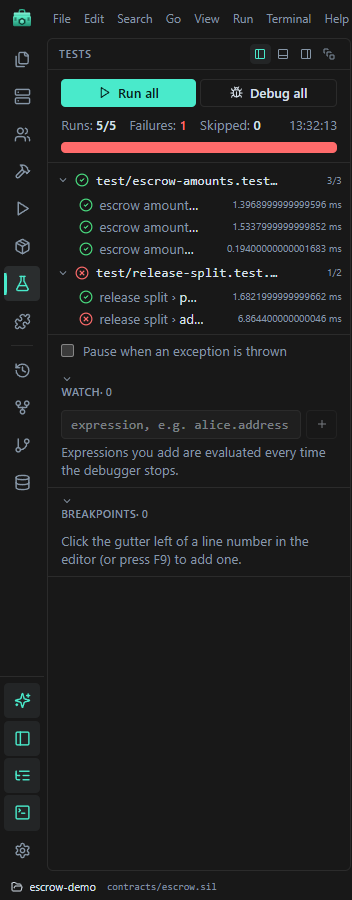
Running tests
Run all in the Tests view, Run → Run tests in this file, or right-click a test file. The IDE runs npx vitest run in the Console and shows the results here. There is no shortcut for a run and no stop button.
Reading the results
- The bar shows runs, failures, skipped and time, in green or red.
- Files expand into their tests; double-click one to open it at that line.
- Select a failing test for the message, Debug this test and Fix with AI (hands it to the assistant's agent).
Debugging tests
The test debugger stops on breakpoints in your own .ts files and lets you step, read variables and watch expressions. It runs vitest under the Node inspector.
- Open a test file and click the gutter next to a line number, or press F9 on the line. A red dot marks the breakpoint.
- Press F5, or use Run → Debug tests in this file, right-click in the file → Debug tests in this file, the Explorer's Debug As menu, or the bug buttons in the Tests view. Debug this test runs only the selected test.
- When a breakpoint is hit, the editor opens at that line and the Tests view shows the debugger.
| Keys | Action |
|---|---|
| F5 | Start (on a test file) / Continue |
| F10 | Step over |
| F11 | Step into |
| Shift+F11 | Step out |
| Shift+F5 | Stop |
| F9 | Toggle breakpoint on the cursor line |
While paused, the Tests view shows the controls (continue, step over, into and out, restart, stop), the call stack (click a frame to jump to it), the variables of the selected frame and your watch expressions, evaluated at every stop. It also lists the breakpoints, offers Pause when an exception is thrown (for your own code only) and shows the test output.
Run → Debug all tests debugs the whole suite; Run → Remove all breakpoints clears them.
Good to know
- Breakpoints are kept per project and follow their lines while you edit. A breakpoint on a line with no code moves to the next line that has code; the Tests view shows where it really stops.
- Test timeouts are off while debugging, so a paused test does not fail with "Test timed out".
- Stepping skips library code (
node_modulesand Node internals). - Debug this test selects by test title, so tests with the same title in other
describeblocks run too. - A debug run does not update the results tree. Its output is in the Test output section of the debugger.
- Watch expressions and the exception option are not kept after a reload.
- Debugger keys do nothing while a terminal has focus.
- Only one debug session runs at a time.