Console and terminal
The bottom panel has two kinds of tabs: the Console and the terminals. A Search tab appears there after a search. Show or hide the panel with Ctrl+J or Ctrl+`, or the rail button.
Console
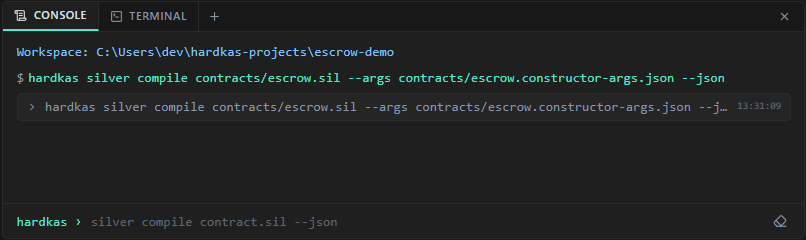
The Console is the IDE's log. Every hardkas command the IDE runs, from any view, appears there with its output, so you can always see what a button really did.
- Warnings and errors are colored. JSON results show as a line you click to expand.
- On an error line, Fix with AI (shown on hover) hands the error to the assistant's agent.
- The eraser button,
clear, or Terminal → Clear console empties it.
Running your own commands
At the hardkas › prompt, type a HardKAS command without the word hardkas, for example status --json or accounts list --json, and press Enter. Up and Down go through the last 50 commands. Double or single quotes keep an argument with spaces together.
The Console only runs hardkas commands, from the project folder. For anything else, use a terminal.
Terminals
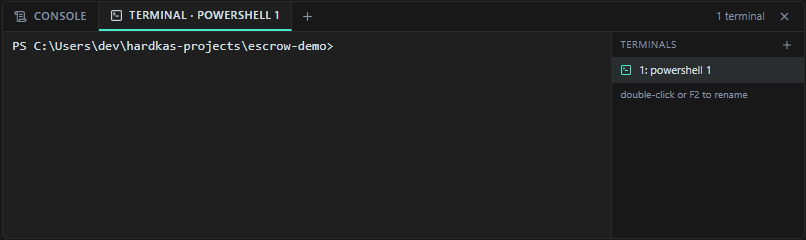
The terminals are real shells, opened in the project folder:
- Windows: PowerShell, started with
-NoLogo -ExecutionPolicy Bypass, so local scripts run in it. - macOS and Linux: your
$SHELL, or/bin/bash. - Set the
HARDKAS_IDE_SHELLenvironment variable to use another shell.
Open one with Terminal → New terminal (Ctrl+Shift+`) or the + button. With more than one, a list on the right lets you switch, rename (double-click or F2) and kill them. Links printed in a terminal are clickable.
Watch out: terminals belong to the IDE. Closing the app ends them, and anything still running in them stops.