 Plugins and extensions
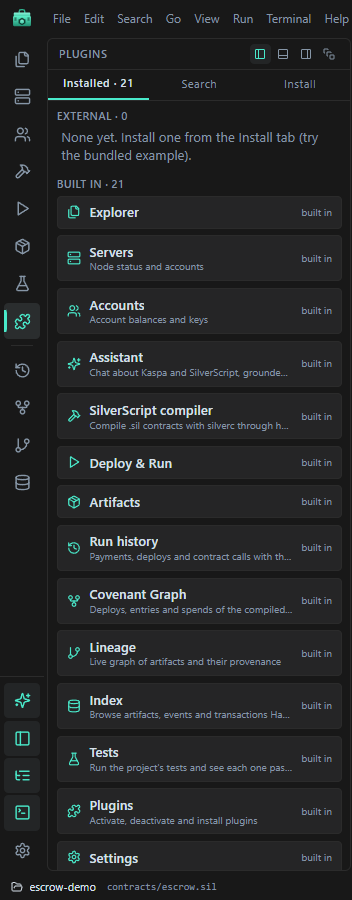
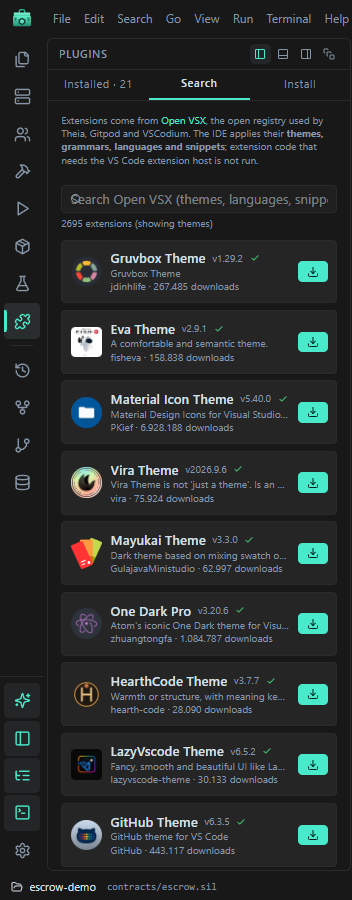
The Plugins view (puzzle icon in the rail, View → Plugin manager) has three tabs:
- Installed: the IDE's built-in parts, plugins you added and Open VSX extensions.
- Search: Open VSX extensions.
- Install: add a plugin.
IDE plugins
Every part of the IDE is a plugin. The built-in ones are marked "built in" and cannot be turned off. Plugins you add are web pages that the IDE shows in a sandboxed frame, as a side panel or as a tab, and that talk to the IDE through a small message API.
Adding one
In the Install tab:
- From a manifest URL: paste the address of a
hardkas-plugin.json. The address must be public: the IDE refuseslocalhostand other loopback addresses here. - From npm: a package name. The IDE runs
npm installinto the open project's.hardkas/ide/plugins, so it needs an open project. - Manual: name, display name, page URL, where it shows (side panel or main panel tab) and permissions.
Names are lower case, start with a letter and may hold digits and -. The names of built-in plugins are taken.
In Installed, each plugin you added has Activate / Deactivate and Uninstall (it asks first). Click a plugin to see its location, methods, address, and the permissions it declared and was granted.
Permissions
A plugin may call some harmless things freely, such as writing to the Console or asking which file is open. For anything else it needs a permission:
- permissions listed in its manifest are granted when you install it, without a question;
- for any other call, the IDE asks: "Plugin "X" wants to call …. Allow?". Your answer is remembered for that plugin until you uninstall it.
Some calls are always refused, whatever a plugin asks for: private keys, accounts, the assistant, the plugin manager, and the account and dev-server token files.
Watch out:
- Read a plugin's manifest permissions before you install it: they are granted at once.
- The list of installed plugins is the same for every project, but a plugin installed from npm lives in one project's folder. After you switch project it may fail to load: install it again there.
- Uninstall removes the plugin from the IDE but leaves its files in
.hardkas/ide/plugins.
To write your own plugin, see docs/plugins.md in the IDE repository.
Open VSX extensions
The Search tab finds extensions on Open VSX, the open registry of VS Code extensions. An empty search shows themes.
The IDE does not run extension code. It uses only the parts that are plain data:
- color themes;
- TextMate grammars, with the languages and file extensions they declare;
- snippets.
Extensions that need code (commands, language servers, debuggers, views, menus, keybindings, settings) are marked "not supported here". Icon themes are not used.
Click the download button to install the latest version (up to 80 MB). An extension that only holds themes applies its first theme at once.
- Color theme picks between "HardKas dark (built in)" and your installed themes. Also recolor the IDE with the theme's workbench colors (off by default) restyles the whole IDE, not only the editor.
- In Installed, each extension has Enable / Disable, Uninstall (asks first) and its themes.
Extensions are kept in ~/.hardkas-ide/vsx/ and apply to every project.
Watch out: disabling the extension whose theme is in use keeps that theme. Pick another one under Color theme, or uninstall the extension.