Settings and updates
 Settings
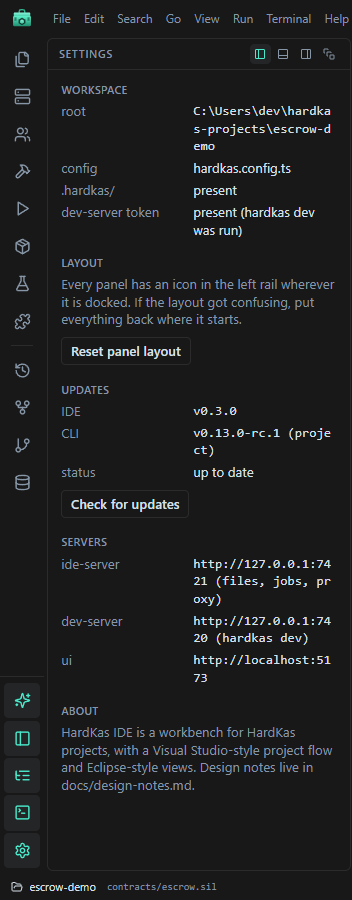
Settings (the gear at the bottom of the rail) shows:
| Section | What is there |
|---|---|
| Workspace | The project folder, its config file ("not found (run hardkas init)" when missing), whether .hardkas/ exists, and whether the dev-server token is there (it is after hardkas dev has run). |
| Layout | Reset panel layout: puts every view back where it starts. |
| Updates | The IDE version, the CLI version in use and where it comes from, the update status, and Check for updates. |
| Servers | The addresses the IDE uses: the IDE server (127.0.0.1:7421), HardKAS' dev-server (127.0.0.1:7420) and the development UI (localhost:5173, only when you run the IDE from source). |
Other settings live where you use them:
- the environment: the environment bar or Run → Environment;
- the assistant's provider, model and key: the Assistant's model chip;
- color themes: Plugins and extensions;
- zoom: View → Zoom in / Zoom out / Reset zoom.
Updates
The IDE checks for updates when a project opens, and when you ask: Help → Check for Updates…, or Check for updates in Settings. It checks two things:
- The IDE: the latest release of
KasLabDevs/HardKasIDEon GitHub. - The HardKAS CLI: the version your project uses, against the version the IDE was tested with and the
@hardkas/cliversions published on npm.
The check sends no project data: it asks GitHub for the latest release and npm for the CLI's version tags. Results are cached for 15 minutes. Offline, it says so and the IDE keeps working.
When something is new, an Update button appears in the title bar. Click it for the details:
- HardKas IDE: the installed and latest versions, the start of the release notes, Download installer (the file for your system:
.exeon Windows,.dmgon macOS,.AppImageor.debon Linux) and Release notes. Both open in your browser. - HardKas CLI: the version in use and where it comes from, the version the IDE was tested with, and the command that updates it for your package manager (for example
npm install @hardkas/cli@<version>). Copy & open Terminal copies the command and opens a terminal for you to paste it.
Remind me later hides this notice until a newer version comes out.
The IDE never installs anything by itself. To update the IDE, run the new installer. To update the CLI, run the command in a terminal.